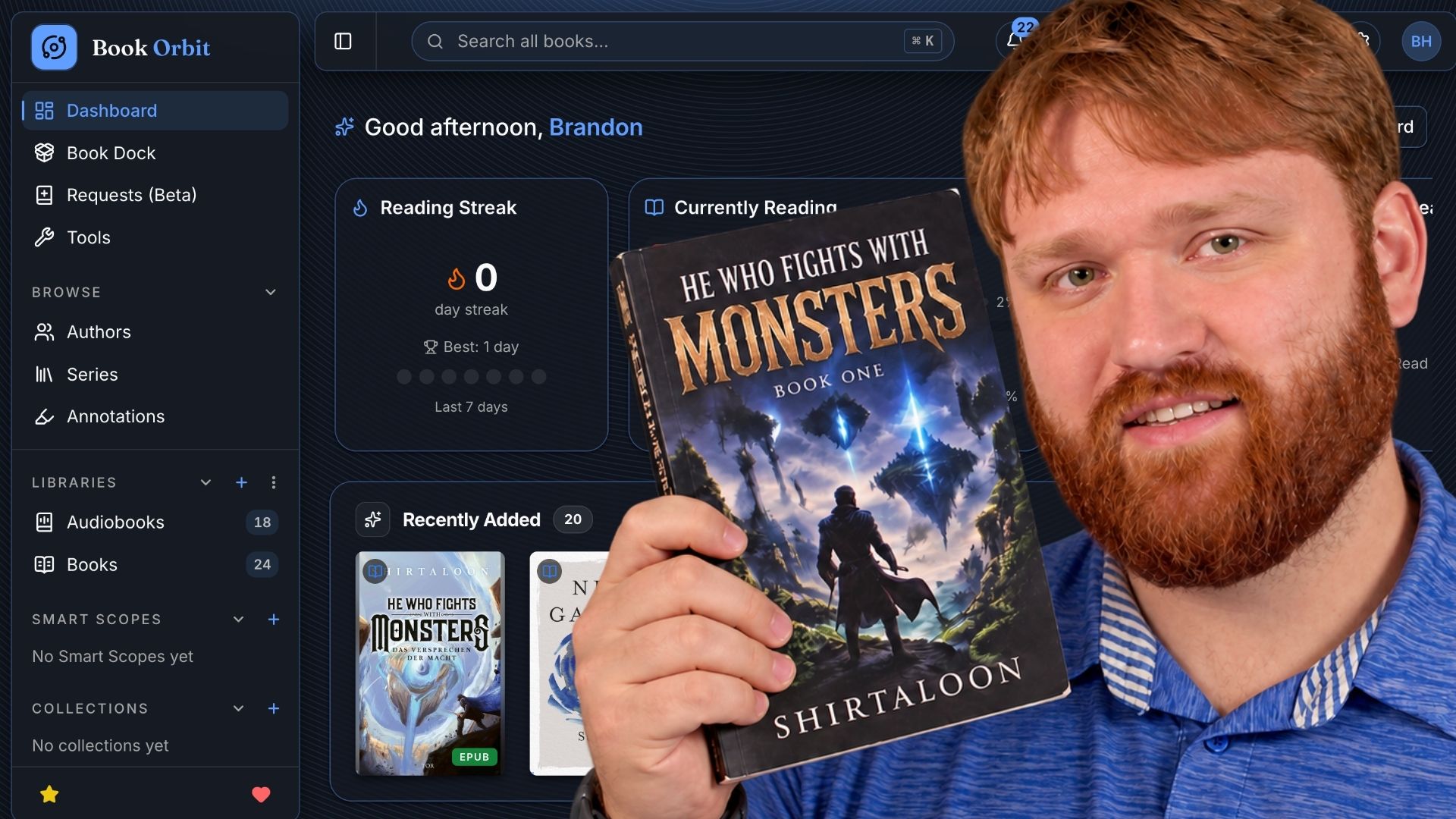


I've covered quite a few tools for organizing a media collection, and BookOrbit brings that same idea to books. It puts ebooks, PDFs, comics, and audiobooks into one self-hosted library, with readers, metadata tools, and progress tracking built in.
For me, this is as much a collection and tracking tool as it is a reader. I still prefer paper whenever possible, but having my library organized in one place is really nice, almost like a self-hosted Goodreads. I can keep track of titles and mark something as read even when I finished it away from the browser.
I've been trying it out rather than using it as my daily reader for months. This walkthrough focuses on my setup, the ebook reader, and the audiobook controls I explored in the video. The written installation has been updated for BookOrbit v3.1.0, released September 25, 2026, so it includes the Requests feature and support for the official mobile app. My hands-on impressions come from the recorded walkthrough, and I've marked the mobile update separately.
What BookOrbit puts in one place
BookOrbit is an AGPL-3.0 self-hosted application that runs with Docker and PostgreSQL. Its documented format support covers:
| Reader | Formats |
|---|---|
| Ebook | EPUB, KEPUB, MOBI, AZW3, AZW, FB2 |
| Comics | CBZ, CBR, CB7 |
| Audiobook | M4B, MP3, M4A, OPUS, OGG, FLAC |
The library layer adds authors, series, collections, Smart Scopes, metadata providers, multiple users, OIDC, reading statistics, and per-user progress. Then OPDS, Kobo, and a dedicated KOReader plugin extend the library beyond the browser.
If you want to look around before installing anything, the project has a Try it live button on its homepage.
How I have it set up
I have two libraries, Books and Audiobooks. The files live on my Unraid data share, which is mounted on the machine running BookOrbit. Docker then makes that folder available inside the app. The Compose project and its persistent app and database directories are separate from the book collection.
For access, I'm using Nginx Proxy Manager with NetBird. My proxy guide and NetBird setup guide cover those pieces. You can also start with the server's LAN address on port 3000.
If your files are on another machine, mount that share on the Docker host first. My homelab storage notes are a starting point. In the example below, /mnt/media/books means the folder on the Docker host where your books are already accessible, not an Unraid path to paste in without mounting it.
Install BookOrbit with Docker Compose
The official installation guide only requires Docker and Compose on the host. This example pins the application and its configuration templates to v3.1.0 instead of relying on a floating latest tag.
These commands are for a fresh installation. If you already have BookOrbit running, preserve your existing .env and data and follow the updating instructions and release notes, including any secret or database migration steps.
Create the project and persistent directories:
sudo mkdir -p /srv/bookorbit/{books,data/app,data/postgres}
sudo chown -R "$(id -u):$(id -g)" /srv/bookorbit
cd /srv/bookorbit

curl -fsSLo .env \
  https://raw.githubusercontent.com/bookorbit/bookorbit/v3.1.0/.env.example
curl -fsSLo docker-compose.yml \
  https://raw.githubusercontent.com/bookorbit/bookorbit/v3.1.0/docker-compose.yml
Open .env and set the public or LAN address, media path, application image, and new secrets:
APP_IMAGE=ghcr.io/bookorbit/bookorbit:3.1.0
APP_URL=http://YOUR_SERVER_IP:3000
BOOKS_HOST_PATH=./books
POSTGRES_PASSWORD=REPLACE_WITH_RANDOM_VALUE
JWT_SECRET=REPLACE_WITH_RANDOM_VALUE
PODCAST_ENCRYPTION_KEY=REPLACE_WITH_RANDOM_VALUE
SETUP_BOOTSTRAP_TOKEN=REPLACE_WITH_RANDOM_VALUE
Generate secrets instead of reusing those placeholders:
openssl rand -hex 24  # POSTGRES_PASSWORD
openssl rand -hex 32  # JWT_SECRET
openssl rand -hex 32  # PODCAST_ENCRYPTION_KEY
openssl rand -hex 32  # SETUP_BOOTSTRAP_TOKEN
Use a separate generated value for each secret, and keep your completed .env private. If the books already live elsewhere, replace BOOKS_HOST_PATH=./books with the host directory containing them, for example:
BOOKS_HOST_PATH=/mnt/media/books
BookOrbit sees that mount as /books inside the container. An ebooks subfolder on the host appears as /books/ebooks in the library settings. The default ./books directory works the same way if you keep the files alongside your Compose project.

The diagram shows the network-share example. Keep the share mounted before starting BookOrbit or scanning a library. The app data stays in ./data/app, and PostgreSQL uses ./data/postgres, relative to the Compose project directory.
For a reverse proxy, set APP_URL to the full HTTPS address you actually use, such as https://books.example.com. For direct LAN access, use http://YOUR_SERVER_IP:3000.
Start the stack and check that the app is running and PostgreSQL reports healthy:
docker compose up -d
docker compose ps
Open the URL from APP_URL. The setup screen asks for the bootstrap token and then creates the first administrator.
Check file permissions
BookOrbit runs as the numeric PUID and PGID configured in .env, with 1000:1000 as the documented default. The mounted book folder must be readable by that identity. It also needs write access if BookOrbit will upload files, finalize Book Dock items, or write metadata into files.
Check the numeric owner of an existing library:
ls -ldn /path/to/books
id YOUR_MEDIA_USER
Set PUID and PGID to the IDs that should access the folder, then apply the change:
docker compose up -d
A scan that finds zero books, EACCES in the logs, failed uploads, or Book Dock finalize errors are good reasons to check the mount and these permissions first.
Create your libraries
The library wizard turns mounted folders into BookOrbit libraries. Paths are resolved from BookOrbit's point of view: the host folder /mnt/media/books appears as /books inside the container. Select the subfolder containing the finished library, such as /books/ebooks, rather than the whole mount if it also contains staging folders.
Give the library a name and icon, then select its folder. I keep Books and Audiobooks separate because that makes browsing easier for me, but BookOrbit also supports mixed-format libraries. With the example mount above, you could use /books/ebooks and /books/audiobooks as two separate library folders. Start with a few files you're authorized to use while you get the folder layout right.
Choose how files become books
Folder as Book is the documented default and the safer starting point for a mixed library. Files in one folder stay attached to one book record, including alternate formats, sidecar metadata, covers, and audiobook tracks. It also keeps a multi-file audiobook together.
File as Book treats each supported file as its own title. That can work for a flat directory, but it does not associate folder-level sidecars or extras.
Run Check folders before creating the library. The prescan should report whether BookOrbit can access the path, how many matching files it sees, and whether the folder overlaps another library.
Set metadata and format priority
The wizard separates two decisions:
- Metadata source priority decides whether embedded metadata or a nearby OPF file wins.
- Format priority decides which registered file becomes primary for reading, downloads, and embedded-metadata import.
Format priority does not exclude a format. Use the scanner's Allowed formats when you want a library to ignore a file type entirely.
The defaults are a reasonable starting point for a mixed library. For an audiobook-only library, move M4B, M4A, or MP3 higher. The primary file affects normal downloads and integrations such as Kobo.
Leave file updates off for the first pass
BookOrbit can rename files and write metadata or covers back into supported files, but those controls are off by default. I recommend leaving them off while you get things organized. You can edit the library's metadata without immediately changing the files on your share.
Folder watching is also storage-dependent. Local filesystems usually provide reliable events. Network mounts may not, so a scheduled scan can be a better safety net.
Start from the dashboard
Once the scan finishes, the dashboard brings together currently reading titles, recently added books, goals, streaks, and reading statistics. I set a goal of six books by the end of the year. My one-day streak wasn't particularly impressive, but that's partly because I spend more time reading paper books.
That's worth keeping in mind with the charts. They reflect the activity you record in BookOrbit and its connected readers, so reading a physical book won't automatically fill in that history. I can still mark a title as read to keep my collection up to date.
The library has three views:
- Grid for visual browsing;
- List for a compact library view; and
- Table for sortable metadata-heavy management.
You can also browse by author or series. Opening a book brings up its description, genres, identifiers, files, reading log, and highlights. The reading log gets quite detailed, which is useful if you do most of your reading through the app.
Collections and Smart Scopes solve different jobs
A collection is a deliberate group of books. A Smart Scope is a saved rule-based filter that updates as the library changes. BookOrbit's own example is the sort of query that shows why this matters: unread science fiction over a certain length and rating.
A collection works well for something like a reading list you picked yourself. A Smart Scope is handy when you want that list to follow a rule automatically as you add books or change their reading status.
Metadata control is deeper than a one-click match
On a book's page, Edit Metadata gives you access to the title, authors, genres, ISBNs, description, and other details. One of the most useful controls I showed is Find cover online. If the app picked the wrong edition's artwork, you can look through alternatives and select the cover you want.
The default providers worked pretty well for my collection. Some providers need additional setup, and the metadata settings let you control provider priority and lock individual fields. That's useful when you've corrected something by hand and want to keep it that way.
The Tools area also includes bulk renaming, duplicate review, and missing-resource checks. Those are useful as the library grows. Review the proposed changes before applying a batch rename or cleanup, especially when other apps use the same files.
Reading and listening in the browser
The browser reader is a big part of the appeal here. You can open a book straight from its library page. My walkthrough concentrates on ebooks and the audiobook player; PDF and comic support are documented features I didn't explore in the same depth.
Ebook reader
The ebook reader worked well on my phone, and it has the controls I'd expect without taking over the page. You can jump through the table of contents, search within a book, add bookmarks, and open your marks and notes from the sidebar. There's also a position control for jumping to a page or percentage.
The appearance settings let you change the theme, font, text size, line spacing, and paragraph spacing. I showed the dark and amber options in the video. You can use scrolling if you prefer that to page turns, hide the footer, or enter full screen.
These sound like small things, but being able to adjust the layout makes a real difference on a phone. I still prefer a physical book, but this is a pretty comfortable way to read in a browser.
Audiobook player
The audiobook player has playback-speed controls, chapter navigation, bookmarks, volume, and skip controls. Multiple bookmarks are handy for keeping track of passages you want to return to later.
I also like the sleep timer. You can set it for something like 60 minutes and have playback stop after you've fallen asleep. I walked through the controls in the video without playing an excerpt, so this isn't a long-term review of audiobook playback or background listening.
PDFs and comics
BookOrbit also has dedicated PDF and comic readers. The reader documentation covers their page navigation and layout controls, including comic fit modes and spreads. They're useful parts of the combined-library approach, but my hands-on impressions above are about the ebook reader and audiobook interface.
A mobile-app update
Update, September 29, 2026: In the video I say I wish there were a mobile app. There is now an official BookOrbit app for iPhone and Apple Watch. Its listing describes offline reading and listening, with paid Premium features including unlimited downloads and Apple Watch listening.
Do note that the developer says the current mobile app requires BookOrbit server 3.0.0 or newer. The 3.1.0 example above meets that requirement; if you're on an older release, check the release notes before upgrading for it. I haven't tested the native app; my mobile impressions here are about the browser reader. The official iOS support page has the current support information.
Annotations become a library-wide workspace
The annotations system combines web-reader, KOReader, and Kobo highlights in one searchable view. It can filter by book, color, style, and source, then export the current result.
That gives you one place to look up notes across your collection instead of opening each book individually. Markdown export is useful if you want to keep those notes alongside the rest of your writing.
Sharing the server with other users
BookOrbit supports separate accounts with their own reading progress, library access, and permissions. For a shared server, you can give someone access to a particular library while keeping administrative controls on your own account.
Those controls are in the users and permissions settings. I showed the account settings in the walkthrough, but didn't perform a full multi-user permissions review.
Book Dock gives uploads a staging area
Book Dock is a holding area for uploads. You can review the metadata and destination before finalizing a file into a library, which is useful when a book needs a different title or cover before it joins the rest of the collection.
For a file you're authorized to add, the workflow is pretty simple: upload it, check the proposed details, choose the destination library, and finalize it. Book Dock also handles imports from the optional Requests feature.
Requests can be a shared reading wish list
Book Requests adds a way for users to ask for a title and follow its status. It's labelled Requests (Beta). The request search looks up book metadata; finding a title there doesn't mean the book is included with BookOrbit or available to download.
You can use Requests without configuring any download sources. Someone asks for a book, and an administrator can fulfill that request using an authorized file already in the library or Book Dock. That makes it useful as a shared wish list even if you handle every addition yourself.
For public-domain reading, Project Gutenberg is one place to find ebooks. Check the specific edition's terms and its status in your country, as Gutenberg explains, before downloading or sharing it. Use files you have permission to store and make available to the server's users.
The current Requests documentation also describes optional direct-download sources such as Project Gutenberg and LibriVox, which don't need an external download client. BookOrbit ships with no sources configured. I'm keeping this walkthrough focused on manual fulfillment and authorized material; the automation is optional, and isn't needed to organize or read your existing library.
A hardlink gotcha with optional imports
If you do use a download client for authorized material and enable hardlinks, the download directory, Book Dock, and destination library need to support hardlinking within the same filesystem and mount inside the BookOrbit container.
I hit an EXDEV error because the downloads and libraries were mounted beneath /books, while Book Dock still used /data/book-dock. Even though both host paths were on the same server, /books and /data were separate Docker mounts. Moving Book Dock beneath /books removed that boundary:
BOOK_DOCK_PATH=/books/book-dock
Keep the Book Dock staging folder outside every scanned library folder. With this layout, select /books/ebooks and /books/audiobooks as your library folders, not /books or /books/book-dock. Scanning the parent /books would include the staging area and could import files before you've reviewed and finalized them.
Use Test hardlink in the download-client settings before relying on this behavior. If the test fails, BookOrbit copies the import instead, which uses additional disk space.
Extend the library beyond the browser
There are several ways to connect another reader or sign-in provider. These are documented options beyond the browser workflow I showed, rather than integrations I've tested end to end for this article.
OPDS
The OPDS server lets compatible reader apps browse and download from your library. It uses separate client credentials and follows the parent BookOrbit user's library permissions.
Kobo
Kobo sync uses a private device URL and collections marked Sync to Kobo. Eligible books must be present, allowed for the user, included in a synced collection, and use EPUB as the primary file. Precise outbound progress and highlight placement depends on BookOrbit's KEPUB delivery path.
KOReader
The BookOrbit KOReader plugin adds a native catalog, downloads, progress, highlights, ratings, and separate revocable credentials. This is more capable than using OPDS alone, but it requires plugin installation and a server the device can reach.
OIDC
The OIDC integration supports multiple providers, account auto-provisioning, local account linking, and group-to-permission mappings. Existing users need local account linking configured before their first provider login if the identity should attach to the original account.
My take after trying it
What I like most is having the collection, metadata, reading progress, and readers in one place. The browser ebook reader worked well on my phone, changing a cover was straightforward, and the dashboard gives me a reason to keep the collection organized even when I'm reading a physical copy.
I still prefer paper, and I haven't spent enough time with every format or device integration to call this a replacement for everyone's existing setup. If audiobooks are your main use, Audiobookshelf is still worth comparing. For my mix of collecting, tracking, and occasional browser reading, though, BookOrbit has been a really nice tool to try.
Start with the live demo or a small library, then add the features that fit how you actually read. My install steps are above, and the official docs below go further into the options I only touched on in the video.